
Mac Printing
Employees on a a personally-owned Mac computer should follow the student instructions.
College-owned Macs are configured to auto install printers on campus. If you want to install additional ones, please contact IT.
Use the following procedure for more control over submitted print jobs:
- Click the
 icon to add a printer
 - Make sure that Default is selected, then locate the printer to install. You will most commonly select PRINT3-CornellPooledMFP-Black or PRINT3-CornellPooledMFP-Color
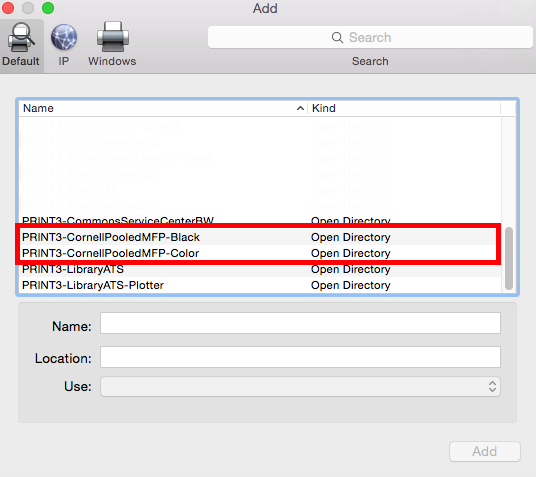
- For PRINT3-CornellPooledMFP-Black
- Click the queue name
- Beside Use: Choose a Driver..., click the dropdown menu and click Select Software
- Use the search function to search for 5945, then select the option for Xerox WorkCentre 5945
- Click OK
- Click Add
- Click Configure when prompted
- Paper Trays: 5 Trays (High Capacity Tandem Trays)
- Finisher: Office Finisher
- Hole Punch Module: Not Installed
- LAN Fax Email Confirmation: Not Installed
- Job Storage Module: Not Installed
- Click OK
- For PRINT3-CornellPooledMFP-Color:
- Click the queue name
- Beside Use: Choose a Driver..., click the dropdown menu and click Select Software
- Use the search function to search for 5945, then select the option for Xerox WorkCentre 7845
- Click OK
- Click Add
- Click Configure when prompted
- Paper Trays: 5 Trays
- Finisher: Integrated Office Finisher
- Hole Punch Module: Not Installed
- LAN Fax Module: Not Installed
- Job Storage Module: Not Installed
- LAN Fax...onfirmation: Not Installed
- Click OK